Featured Post

Anastasis Academy is Hiring for 2012-2013 Year! (pass it on)

Team Anastasis at EduCon in Philly 2012 If you are a regular reader of my blog (or Tweets) you know about Anastasis.  This is the school that @matthewquigley and I started a year ago.  It has been an incredible journey.  What makes what we do everyday work? We surround ourselves with the VERY best. ...

Read More

DIY: a maker site for kids

Posted by admin | Posted in Anastasis Academy, Art, Character Education, Create, iPod, Language Arts, Math, Middle/High School, Music, Primary Elementary, Science, Secondary Elementary, Teacher Resources, Web2.0, Websites | Posted on 08-03-2013

Tags: , , , , , , , , , , , , , , ,

1


What it is: I LOVE everything about this site.  It truly embodies everything I love about learning and technology.  DIY is an online club for kids to earn maker skills.  Kids (otherwise known as Makers) share their creations and work with a larger online community and collect patches for the skills they learn.  Each skill has a set of challenges that help kids learn different techniques and create something fantastic.  When a child completes a maker challenge, they can add photos and video to their online portfolio to show off their creation.  DIY is a website where kids get a public portfolio, an app that they can use to upload videos and pictures of their projects, makers can choose to do challenges to earn “Skills” badges, and a parent dashboard where teachers or parents can follow along on all activity.

Maker identities are always secure, children are asked to choose an animal and a nickname to help protect their privacy. Parents get access to see what their kids are posting online.

I love that this site encourages creativity, reflective portfolios and using technology constructively.  It is an outstanding balance of online and offline activity!

Screen Shot 2013-03-08 at 10.42.58 AM

How to integrate DIY into the classroom: At Anastasis, we strive to encourage a maker community.  We do have a 1:1 iPad environment.  For many, this equates to a technology rich environment (it is) where everything is done or consumed on a device.  I can think of nothing sadder than reducing learning to a device!  We most often use our technology to capture and share our learning.  DIY is a fantastic site that makes way for kids to be curious about the world around them, create something new and use technology to innovate.

DIY is a great place to help students discover the love and joy of being a learner and a creator.  It fosters a classroom culture of innovation and sharing of learning and accomplishment.  So many of the challenges incorporate learning that support standards and other learning that is “required” in the classroom.  These challenges would be great to take on as individual makers, in small groups of makers, or to tackle as a whole class.  Don’t think of DIY as an “extra” thing to add into your classroom routine.  Instead, look through the challenges through the lens of how it can enhance the learning objectives in your classroom.  Embrace the maker culture in your classroom and allow room for creativity and innovation.  The inquiry model of learning lends itself beautifully toward this.  DIY could be the catalyst to making the shift away from more traditional learning and into an inquiry based model.

Tips: Instead of assigning “traditional” homework (read: piles of worksheets), assign a challenge from the DIY site.  Better yet, let students choose their own challenge to tackle and make time in the classroom for them to share their creations and accomplishments.

Leave a comment and tell us how you are using  DIY in your classroom.

Gamestar Mechanic: Teaching game design in the classroom

Posted by admin | Posted in Analyze, Anastasis Academy, Apply, Art, Character Education, Create, Evaluate, Fun & Games, Language Arts, Math, Middle/High School, Primary Elementary, Science, Secondary Elementary, Teacher Resources, Understand (describe, explain), web tools, Web2.0, Websites | Posted on 15-02-2012

Tags: , , , , , , , , , , , , , , , , , ,

4

What it is: I just love when I get lost in a bunny trail of links…you know the kind, you go hunting for something specific and click on something that looks interesting which leads you to a browser of 25 tabs open.  I had one of these serendipitous link moments today that lead me to Gamestar MechanicGamestar Mechanic is both a game and an online community that teaches kids how to design their own digital games.  In designing games, students learn systems thinking, creative problem solving, art and aesthetics, writing and storytelling, and creates a motivation for further STEM exploration.  The free version of Gamestar Mechanic is available with unlimited use for teachers who want to use it with their students.  This account option comes with 1 teacher login and 40 student logins.  A premium account offers some additional classroom goodies including: class management, the ability for students to incorporate their own custom artwork, live professional training webinars, tools for tracking student activity and assessing progress, the option of having a “walled” school community, and more.
As a teacher you will find sample lessons for using Gamestar Mechanic, an introductory step-by-step guide, and a full learning guide.  Teachers can even play a short quest to learn more about how to use Gamestar Mechanic in the classroom to teach core subjects.

How to integrate Gamestar Mechanic into the classroom:  There is so much to learn from digital games.  As a player, students learn to think strategically, persist through failure and experience epic wins that can translate to what they do and are willing to try out in real life.  As a designer students learn systems thinking, creative problem solving, digital art and aesthetics, and storytelling and writing.  Students love being able to bring their creations and ideas to life in the form of a game.  Gamestar Mechanic could be the key to unlocking the storytelling genius in your reluctant writers.  It has been my experience that a student faced with a blank paper and a writing assignment can be daunting.  Introduce the idea of designing their own game and suddenly a storyline pours forth.  It is pretty neat to watch!
Gamestar Mechanic makes it easy for all teachers to incorporate game design into the classroom and weave it into the core subjects being taught.  You don’t have to be a tech-superstar, just create an account, read through the getting started guide and enlist the help of a student who’s passion is game design.  This type of designing and thinking is wonderful because it lays the ground work for so much other STEM thinking.  It nicely blends disciplines and helps students recognize the overlap in the learning that they do.
Students can each create a game of their own in a lab setting where every student has a computer.  If you are limited on your computer options for students, create a game as a class using an interactive whiteboard or projector-connected computer.  Students can create games that incorporate other learning or research they are doing to help teach future classes or younger students.  At Anastasis, we have Crave Classes.  These are classes that the student gets to choose based on personal passions.  In the one or two computer classroom, give your students time for a Crave class where they work on Gamestar Mechanic.  Other students can follow their areas of passion…almost in a center type of a set up.
Tips:  There are a variety of pricing and package options for classrooms.  If your students are really enjoying the game design process, it might be worth taking a look at the premium options available.

Please leave a comment and share how you are using Gamestar Mechanic in  your classroom!

Moglue: Create interactive ebooks and release as apps!

Posted by admin | Posted in Art, Create, Download, Geography, History, Interactive book, iPod, Language Arts, Math, Middle/High School, Primary Elementary, Science, Secondary Elementary, Software, Teacher Resources | Posted on 26-10-2011

Tags: , , , , , , , , , , , , , , , , , , , , , , , , , , ,

4

What it is:  Moglue is an interactive ebook builder that helps students create and share their stories on mobile devices as an app.  This download desktop platform makes it a snap for students to create interactive ebooks and release them as apps for iOS devices (iPad, iPhone, iPod Touch), Android tablets and Android phones.  Students only need to build the content once and Moglue makes it compatible with each user interface seamlessly.  No programming is required, this is a great creation platform for all classrooms!  Using a simple drag and drop interface, students can make their stories come to life.  Every child is enabled to be an artist now.

How to integrate Moglue into the classroom:  I think tools that make content creation simple are absolute genius.  As much as I would love for every student (and myself) to know how to program, it takes quite a bit of know-how before students can make their stories and ideas come to life.  The intuitive interface of tools like Moglue let students focus on breathing life into their creations and not on the technology tools used to build them.  Tools like Moglue are wonderful for the classroom where students are often short on time and resources (someone to teach them programming).  Because the interface is so easy to use, students can focus on telling a story, releasing their inner artist, and letting their creativity shine.

Students (or classes) can use Moglue to:

  • Tell a fractured fairy tale
  • Create a choose your own adventure story
  • Demonstrate science concepts in an interactive “glossary”
  • Create a class dictionary of math, science, economics or geography words
  • Write creatively
  • Create an interactive “textbook”
  • Create an illustrated dictionary for a second language
  • Create an interactive “travel-the-world” geography book
This is a neat way for students to publish their work and share with others!

Tips: The Moglue builder can be downloaded on Mac or Windows computers and has a great tutorial to get your students started!

Please leave a comment and share how you are using Moglue in  your classroom!

Presenting Learning with Stop Motion Animation

Posted by admin | Posted in collaboration, Create, inspiration, iPod, Knowledge (remember), Middle/High School, Primary Elementary, Secondary Elementary, Subject, Understand (describe, explain), video, Video Tutorials, web tools, Websites | Posted on 14-09-2011

Tags: , , , , , , , , , ,

8

What it is:  At Anastasis Academy, we have some Stop Motion Animation PROS in the form of an eight year and ten-year old boy.  These brothers taught themselves how to use stop motion animation, proceeded to create several learning videos (without assistance from a teacher) and, if that wasn’t enough, went on to teach the rest of our students how to do it!  Incredible.  Nothing like starting the day with a little viral learning!  Today these two young boys stood before our junior high students (twelve to fourteen year olds) and taught them how to make a stop motion animation video.  The young boys are SO proud of their accomplishment and were incredibly articulate as they taught the older kids about stop motion, the programs that can be used for stop motion and talked about technique.  The older students followed along as the boys led them step-by-step through creating their own short stop motion video with a pencil or shoe.  The ten-year old then issued the jr. high a challenge: Create a stop motion video before the end of the school day to show me, I’ll give you tips on what you can improve on.  Above is one of the jr. high created videos that was presented.  It was incredible to stand back and watch kids teaching and leading kids this way.  The age difference was no barrier today!

Today, our students used the iMotion HD app on the iPad to create their stop motion animations.  This FREE app is powerful in the hands of creative kids!  The brothers have been using stop motion regularly to reflect on, or display learning.

The older of the two brother’s started learning stop motion using SMA (Stop Motion Animator) this is a free program that works using a PC, webcam and a whole-lotta (technical term) imagination.

For the Linux crowd, there is the free Stop Motion.

For the Mac crowd (cheers), there is the free Jelly Cam.

How to integrate Stop Motion into the classroom:  Stop Motion is a great way for students to create their own animated videos.  Students can use stop motion to display learning, as a way to reflect on learning, to tell a story, to demonstrate a time-lapse of a scientific process or just as a creative outlet.  Stop motion requires students to do some pre-planning.  First students have to decide what story they are trying to tell, next they have to decide how they are going to demonstrate that story visually, finally they need to move an “actor” frame by frame through the scene.  The results are pretty incredible (as you can see above).

Tips:Some tips from our Stop Motion PROS: Make sure not to move your actor too far each time or the end result will be choppy, make sure to move your hand out of the shot before snapping the picture, plan through your story BEFORE you start.

Check out our YouTube channel for more stop motion animation from our students.  The Bones, Gnome.Eaten.By.Jaws, and Anastasis Academy videos were all created by the 8-year-old! (P.S. The kids LOVE comments on their videos!)

This, my friends, is what happens when you give kids room to learn!  Onward.

Please leave a comment and share how you are using Stop Motion Animation in  your classroom!

Fraboom Online Children’s Museum: Online classes, videos, interactive book, games, oh my!

Posted by admin | Posted in Art, Classroom Management, Create, Fun & Games, Government, Interactive book, Interactive Whiteboard, Language Arts, Primary Elementary, Secondary Elementary, Teacher Resources, video, Websites | Posted on 04-05-2011

Tags: , , , , , , , , , , , , , ,

2

What it is: Oh. My. Word. I have just stumbled on gold my friends, gold!  Fraboom is an online children’s museum packed full of games, interactive books, creativity, learning and-are you ready for this-LIVE online teachers!  On Fraboom students can learn about US presidents while they play games, watch Fraboom TV cartoons to learn vocabulary, read interactive books that encourage creativity and join live online classes with real flesh and blood teachers!  Fraboom TV has a variety of cartoons that will teach students content area vocabulary words. Each cartoon on Fabroom TV lists all associated vocabulary words so teachers can quickly find a video that will support learning.  Cartoons can be searched by keyword or category.  The very best part of Fraboom (in my humble opinion) is the live online teachers.  Drawing classes start every hour on the hour.  Students can drop into a class and learn how to draw cartoons.  There is a new challenge every day so content is always fresh!  Students can interact with teachers through the chat feature; students type a message and the teacher responds to them by name.  Fraboom cartoon characters introduce the activity for the day and the teachers interact with the cartoon on the screen- very fun!  Students learn how to draw step by step guided by the teacher and follow along on their own whiteboard space.  When students are finished, they can share their pictures with the class.  After drawing, the class completes a mad lib together.  The teacher explains a part of speech and requests words for that part of speech from the class.  Students can contribute words to the story by typing them into the chat area. Throughout the class, the teacher shares submitted pictures with the whole class.  I attended two live classes and was really impressed with the teachers in both sessions. They are upbeat, engaging and fun.  Fraboom was created for students six to twelve years old.  Content is being added regularly and fresh challenges in the live classes every day.  Plenty to keep kids creating and learning!

How to integrate Fraboom Online Children’s Museum into the classroom: With widespread budget cuts and art programs being cut regularly, Fraboom is a welcome new addition to the education landscape.  Being able to connect every student in your class with another teacher is amazing.  Fraboom could be used on classroom computers as a creativity/art/grammar center that kids can visit throughout the week.  Students can get one-on-one attention from a virtual teacher freeing you up to work in small reading or writing groups knowing that all of your students are engaged in learning.  Connect to a Fraboom online session as a class using a projector-connected computer or interactive whiteboard.  Students can follow along with the drawing instructions and take turns engaging in the chat as a whole class.  Students can take turns creating the class picture on the projector or interactive whiteboard while students at their seats create their own masterpiece.  This would be a great activity for students to do while you hold one-on-one student conferences in your classroom.

Fraboom TV is full of fun cartoon videos that help students learn a variety of content area vocabulary.  Use these videos to introduce a new unit so that students are familiar with vocabulary before engaging in new learning.

The interactive stories on Fraboom can be shared with your class using an interactive whiteboard or projector-connected computer.  Read through the story as a class and practice comprehension strategies together.

Tips: Be sure to share Fraboom with parents, this would be a great opportunity for learning at home too!

Please leave a comment and share how you are using  Fraboom in your classroom!

Color in Motion- Exploring Color

Posted by admin | Posted in Analyze, Apply, Art, Create, Evaluate, History, Interactive Whiteboard, Knowledge (remember), Language Arts, Middle/High School, Primary Elementary, Secondary Elementary, Teacher Resources, Understand (describe, explain), video, Websites | Posted on 31-01-2011

Tags: , , , , , , , , , , , , , , , , , , ,

9

What it is: Amazing really doesn’t do this site justice.  No really, this might be my favorite site of the month…that is saying something!  Regardless of if you teach about color or art, Color in Motion is a must see just for the creativity and brilliance of the site.  Color in motion is a wonderfully animated and interactive experience of color communication and color symbolism.  Have you ever looked at an art website and thought, “really, this is the best they could do? It is a site about art for crying out loud!”  No? Just me? :) Color in Motion is not one of those sites. The minute you begin exploring you know that this isn’t just a site about color, it is a work of art.  There are three activities on  Color in Motion.  The Stars introduces students to the color stars (primary and secondary colors personified).  When students click on a color stars profile they learn about their blood (the color(s) that make them up), what the star is hired to represent (the feelings the color gives), the positive and negative traits, and what the color represents around the world.  In the movies, students can sit back and enjoy the show as they learn about the symbolism of each color in a fun animation.  In the Lab, students have the opportunity to interact with the different stars. Students can direct a scene acting as a movie director based on a word that represents the color choice.  In project 2, students are a color star manager. It is up to them to decide which production their star is going to participate in based on what they learned about color symbolism.  Project 3 is a kaleidoscope where students can just have fun and “play” with color in a virtual kaleidoscope.

How to integrate Color in Motion into the classroom: Color in Motion is a fantastic place for students to learn more about color in a highly interactive, engaging, and fun way.  Students learn about color through story.  They meet each of the colors as a different character being cast for a production.  The site is great for any art or design class but could be equally wonderful for a creative writing project.  After your students have had some time to explore the site and interact with the different characters, ask them to choose a character to write a story about.  Students should write the story based on the character traits they know about the color.

As a getting-to-know-you activity, students could choose a color that they feel best represents them personally.  Students can list all of the color attributes that they feel describe them.  Are they a mix of colors? Have students write down what the mix is and why.

Looking for a way to spice up spelling/vocabulary practice? Have students assign each word a color based on the word meaning and the color character traits that match.  Students can compare and contrast the colors they chose for the words with the colors other students chose for a light persuasive argument.

As students study historical and literary figures, they can assign each a color based on the matching character traits.  It would make a really neat bulletin board to have a color wheel with pictures of historical/literary characters on each color based on the similar character traits.  These types of activities help students draw parallels and think about history and literature in new ways.

Younger students can think about what color an animal would be if it was the color of its color character traits.  The creative possibilities with Color in Motion are endless.

Oh yeah, in addition to all of those “spin-off” ideas, there are great creative activities right on the site many of which would be great for whole class with a projector-connected computer or interactive whiteboard, for small groups in a center activity, or individually in a one to one computer situation.

Tips: Color in Motion can be viewed in both English and Spanish.  If you have students learning English or Spanish as a second language, the colors and adjectives on this site are wonderful!

Please leave a comment and share how you are using Color in Motion in your classroom.

Free WebEvent with Livebinders and Yours Truly: Creative Thinking with Digital Bloom’s Taxonomy

Posted by admin | Posted in Blooms Taxonomy, inspiration, Middle/High School, Primary Elementary, professional development, Secondary Elementary, Teacher Resources | Posted on 10-01-2011

Tags: , , , , , ,

7

Mark your calendars for a FREE web event this Thursday, January 13 (2011).  Click here to find out when it will be live in your timezone.  I will be joining the ladies at Livebinders and Dean Mantz for a conversation about Creative Thinking. The discussion will be focusing on Blooms to inspire critical thinking and collaboration creatively using a variety of web tools.  I will provide some insight to her methods of evaluating sites and tools before I recommend them on iLearn Technology.  It is sure to be a fun time!

Join us on Thursday using this link.

I created this Digital Bloom’s Taxonomy Livebinder for the web event, start perusing it now and bring your questions to the live event.  This Livebinder has a variety of my favorite websites and webtools organized by Bloom’s Taxonomy.

I hope to see you all there!

Felicity from Thin Air: Inviting creativity, imagination, and play in the classroom

Posted by admin | Posted in Art, Character Education, Create, Fun & Games, inspiration, iPod, Language Arts, Math, Primary Elementary, Science, Secondary Elementary, Teacher Resources, Web2.0, Websites | Posted on 17-12-2010

Tags: , , , , , , , , , , , , , , , , , , ,

2

The following is a re-post from my other blog: iPad Curriculum.  I shared Send Felicity a few weeks ago as part of my advent collection but thought I would give everyone a little more information about this incredible site and invitation for play.  Even though Send Felicity has an iPhone/iPod Touch app, the app isn’t necessary to engage in the creative play which is also available on the Send Felicity website and Facebook page.  I encourage you to offer your students opportunities for play.  I deeply believe that play is a strong catalyst for learning.

Application/website: Send Felicity

What it is: Everyone could use a little more magic and enchantment in their lives and Send Felicity brings students (and teachers/families) just that.  Take a look at the video below to watch some of that magic unfold.

Felicity is six and three-quarters years old.  She loves imagination, making things, and magic.  She comes from a magical place called Thin Air. Felicity invites children everywhere to join her in play.  Every day there is a new special surprise waiting for children.  Each surprise invites students to engage in creativity, play, imagination, and learning.  It is an enchanting-ongoing place that involves technology, imagination, and the real world in new ways.  The artists, geeks, and minds behind Felicity are deeply committed to keeping the childhood experience one of magic, imagination, and exploration.  They bring these values to life beautifully as an application, website, and social experience.  What I love about the Send Felicity experience is the storyline behind Felicity, and the invitation to be part of something that is engaging, meaningful, and magical.  The combination of the three makes Send Felicity a unique learning and interactive experience.  So, how does Send Felicity work?  Children can visit the application or website to learn of a new craft (adventure) to take with Felicity.  Felicity takes every day objects like paper plates and makes them magical.  Children follow the adventures and create and pretend along with Felicity.  Children can take pictures of their finished masterpieces and upload them to the Send Felicity website, sharing the creative experience with others.  The application is truly unique and takes what is real and adds a bit of magic (as you saw in the video).

How Send Felicity can enrich learning: Play is an important part of learning. It provides the building blocks for self-regulation and executive functions, promotes creativity, imagination, and divergent thinking.  Unfortunately play is often stripped from the classroom.  Send Felicity weaves together a wonderful tapestry of play and learning in the form of an application, a website, and a social movement.  Felicity uses open-ended play and experimentation that leads to an attitude of fun learning.  Felicity helps your students turn ordinary objects into creative works of magic.  Use Felicity’s daily dose of magic to spark your students imaginations.  Set aside some time for your students to do a little creative play.  The benefits that play has on the rest of the learning day will be well worth the time invested.   Go beyond the crafts and invite your students to write stories, poems, or secret letters in connection with the imaginative play of the day.   Activities for Felicity are open-ended and include art, language arts, literacy, and even math and physics.   Send Felicity marries technology and real life in new fun ways.  The application is just a piece of the bigger picture.  The application takes students physical creation and adds a little magic to it.

Send Felicity is really an app all about engagement of the mind.  As an example, one of my personal favorite Sending Felicity projects Beautiful Oops:

Today we are boldly making mistakes.Today, our children will make a small mess.

Today, we’ll set out on an adventure and begin with an “oops” and end up in a place where we can look and wonder. Together, we can do something mistaken and wrong; and audacious and wonderful to surprise everyone.

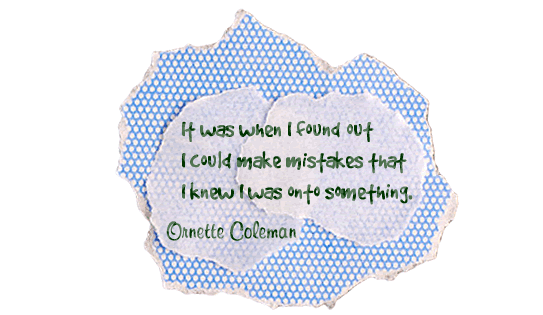
This project shows children that it is okay to make mistakes, and that, in fact, those mistakes can be turned into something wonderful, new, and meaningful.  Students don’t hear often enough that it is okay to make mistakes and that it is indeed an important part of the learning process.  Take a look at what these beautiful oops turn into:

The Send Felicity App has not yet been released to the iTunes store, but don’t let that stop you from using Felicity in your classroom right now, the Send Felicity website is full of fun activities, instructions, and even a bit of magic.  You can also check Felicity out on Facebook where she shares creations made by children from around the world!  Send your students home with a wonderful gift this holiday season and point them toward the Send Felicity website. Students will love the opportunities for play and imaginations, parents will love the ideas to keep their kids learning and playing.  Let parents know about Send Felicity along with this article from Geek Mom for a little explanation.

The wonderful people over at Send Felicity are so passionate about creating a world of wonder and imagination for children to play in that they have made the technology that Send Felicity is based on open source.  Interested parents, educators, and developers are invited to sign up to play along with them.

Devices: Compatible with iPhone, iPod touch iOS 3.1.3 or later

Price: Free!

LEGO Education Magazine-Free!

Posted by admin | Posted in Apply, Create, History, Interactive book, Knowledge (remember), Math, Primary Elementary, Science, Secondary Elementary, Teacher Resources | Posted on 15-12-2010

Tags: , , , , , , , , , , , , , , , , , ,

10

What it is: LEGO Education has some truly fantastic resources for classrooms.  LEGO Club In-School Edition Magazines are free to schools and designed for first, second, third, and fourth grade students. The 2011 LEGO Club In-School Magazines have two themes: Ancient Egypt and Space Exploration.  The magazines can be ordered in two versions.  For first grade students, LEGO Club Junior includes puzzles, easy-to-read comics, and fun building challenges.  For students in second, third, and fourth grade, LEGO Club focuses on basic reading, critical thinking games, and building ideas.  Each magazine comes with a custom teacher’s guide that include fun hands-on activities, classroom tidbits, and articles about how to create a LEGO Smart classroom for your students.

How to integrate LEGO Education Magazine into your curriculum: These fun magazines will have your students learning about and exploring Ancient Egypt and Space Exploration in new hands-on ways.  Your students will love the building challenges, comics and reading material, and activities that pique their curiosity.  Use the LEGO Club Magazine as an introduction to a unit on Space or Ancient Egypt, or offer the activities in the magazine as extension activities.

Tips: Magazines are packaged in groups of 50, 100, and 200. Consider ordering the magazine for the entire grade or school.

Please leave a comment and share how you are using LEGO Education Magazine in  your classroom!

More Advent Calendars: Student created, creative, and imaginative!

Posted by admin | Posted in Art, Character Education, Create, Fun & Games, inspiration, Interactive Whiteboard, iPod, Language Arts, Middle/High School, Primary Elementary, Secondary Elementary, Social Studies, Teacher Resources, Websites | Posted on 02-12-2010

Tags: , , , , , , , , , , , , , , , ,

4

After my last post I found some new advent calendars that I just had to add to the list.

First is an advent calendar created by eighth graders at ASLS who’s teacher Mr. Akerson (@mra47) I follow on Twitter.  What is so neat about this advent calendar, is it is made up of pictures of the students and teachers.  Each day that you click on delivers a new devotion written by one of the eighth graders.  I have NO idea how they created this site, each day all of the students pictures look a little different direction so that they are focused on the person on the date of the day (that is a total of 2200 pictures!!).  Genius! They are making Weebly do things I am sure it wasn’t intended to do.   The students at ASLS have a goal to get someone from every state in the US to view their advent calendar.  I think we can help them out with that and do one better, let’s get them views from around the world! This student created calendar is not to be missed! This calendar is a fun one to use with your students, but why not blog lift their idea and create a similar calendar with your students?  Since we are already into December maybe yours is a 12 days of Christmas calendar or a unique lead up to your schools winter break.  Students could create a “word a day” calendar, math problem of the day, featured student art, story of the day, poem of the day, fact of the day…the possibilities are endless on this one. Ask your students, they will have great ideas!

The second calendar is one that is sure to spark your students imagination and creativity.  Send Felicity is a beautiful idea and way to celebrate all things imaginative.  Every day Felicity From Thin Air will surprise your students with fun activity ideas that are illustrated by some of the best children’s book illustrators in the world.  The idea behind the Send Felicity and the illustrations are enchanting.  Currently ideas are being shared on the Send Felicity website.  There is an accompanying application for the iPhone/iPod Touch/iPad that is soon to be released.  This complimentary (read free) application will guide students in creativity and imagination.  Eight arts and crafts ideas will be interspersed throughout for students to complete with their families or at school.  All creations can be submitted to the Send Felicity gallery.  Felicity from Thin Air is meant to be a new way of learning and engagement for the mind. It is about creativity, collaboration, and sharing with a global audience.  In addition to the daily activities, there are magic surprises.  I don’t know what the magic is but I am assured I will know it when I see it :)   Get your students families engaged in some fun holiday spirit.  Instead of homework for the month of December, why not give your students (and parents) the homework of following Felicity from Thin Air and engaging in creativity as a family.  I guarantee that the positive effects will be much more lasting than any worksheet you could send home.  Today’s Felicity from Thin Air activity is Fancy Dress for Dinner.  Pick any theme and invite the whole family to show up for dinner dressed for the occasion.  Costumes can be as silly or creative as you like!  Following Felicity at school?  Adapt the idea for a Fancy Lunch or Fancy Math class and have your students create impromptu costumes out of classroom items.  Don’t have time for the cut/paste? Have your students draw their costume.  The goal is to let kids be creative and imaginative!

Librarian extraordinaire Shannon Miller of VanMeter shared the Polar Express advent calendar with me.  This calendar includes the beautiful Polar express illustrations and combines it with fun activities and give away opportunities.  Enter a chance to win the giveaways for your class (for example yesterday was a chance to win the Polar Express bell from Santa’s sleigh) and complete the activities together.  Each day is a new surprise!

How to integrate Interactive Advent Calendars into the classroom: The season of Advent is always filled with eagerness and expectancy. Build some of that anticipation into your school day by allowing students to unlock a new secret on the advent calendar each day.  Use these advent calendars with the whole class on an interactive whiteboard or projector, or set them up as a quick center activity that students can visit.  Use the advent calendars that reveal a story to practice looking for foreshadowing clues, using context clues to guess what will happen next, or as story starters for students own stories.

Tips: Each of these advent calendars has some fun goodies and hidden surprises, find the one that best fits your classroom needs.

Thank you to all of you who have spread the word to fellow teachers about my Web 2.0 advent calendar, I am glad you are enjoying it!